









About WebGL Fluid Simulation
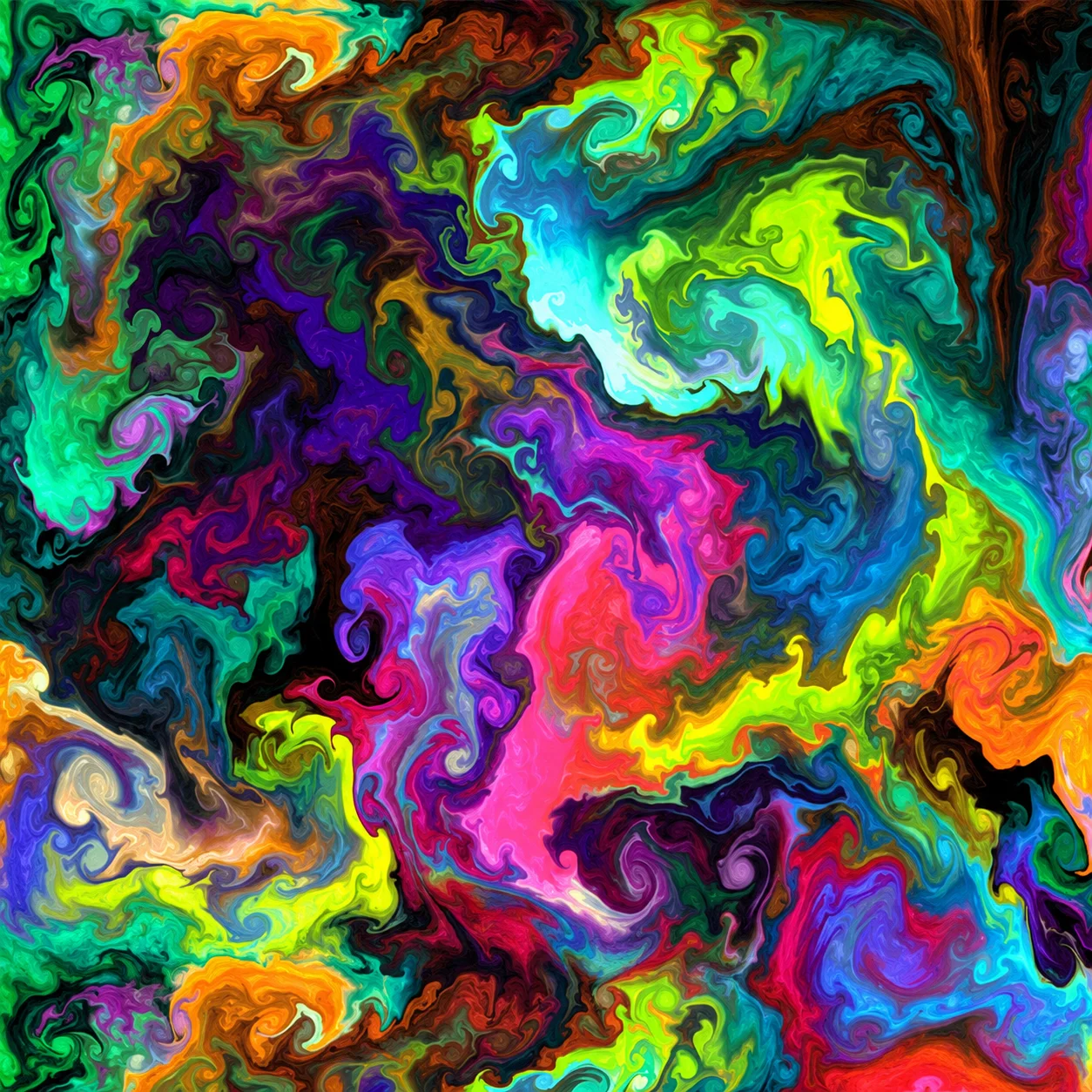
WebGL Fluid Simulation is an interactive browser experiment created by Pavel Dobryakov. It uses GPU-accelerated physics and visual effects to produce flowing, colorful patterns that respond immediately to your input.
Unlike a conventional game, the simulation has no levels, opponents, timer, or final score. The entire canvas is an open creative space where you can drag the cursor to inject color and movement into a virtual fluid.
Every gesture creates a different result. Fast movements generate long, energetic streams, while slower circular motions form curls and layered spirals. Existing colors interact with new ones, creating constantly changing abstract compositions.
WebGL Fluid Simulation runs directly in a compatible web browser without additional software. Its combination of simple controls and advanced visual settings makes it both a relaxing digital toy and an accessible demonstration of real-time fluid dynamics.
How to Use WebGL Fluid Simulation
Move the pointer onto the canvas and begin dragging. A colorful fluid trail will follow the cursor and continue moving after you release the mouse button.
Try the following process:
- Click and drag through an empty part of the canvas.
- Move quickly to create a long, forceful stream.
- Draw circles to form a rotating vortex.
- Release the mouse and observe how the fluid develops.
- Add another color from a different direction.
- Open the settings panel to change the physics.
- Adjust one parameter and compare the result.
- Clear or restart the canvas when you want a new composition.
- Use the capture option, when available, to save a favorite image.
There is no correct way to play. You can create deliberate artwork, experiment with the physics, or simply watch random colors flow across the screen.
Controls
The standard browser interaction is simple:
Some hosted editions add optional keyboard commands such as Spacebar for random splashes, P for pause, R for reset, H for hiding the interface, or S for a screenshot. Follow the controls displayed in the specific build on the page.
Fluid Physics and Visual Settings
The configuration panel lets you change both the simulated motion and its final appearance.
Higher resolution generally produces more detailed results but also increases the workload placed on the browser and graphics hardware. Reduce the simulation or dye resolution if the animation becomes slow.
Beginner Tips for WebGL Fluid Simulation
Start with slow circular gestures. They make it easy to see how direction and curl affect the fluid.
Change one setting at a time. Adjusting several parameters simultaneously makes it difficult to understand which one produced the result.
Use a moderate splat radius. Very large inputs can fill the canvas before patterns have time to develop.
Wait between gestures. Some of the most interesting shapes appear after the cursor stops moving.
Introduce colors from opposite directions. Their flows can collide and create layered waves or rotating structures.
Lower the resolution if movement feels delayed. Smooth interaction is more useful than maximum visual detail.
Restart often. A clean canvas gives you room to test a new technique without interference from older trails.
Advanced WebGL Fluid Simulation Techniques
Create a central vortex by drawing several circles in the same direction. Add new colors near the outer edge so they are pulled into the rotating flow.
Build symmetry with mirrored gestures. Draw one line from left to right, then repeat it from right to left using a similar speed and angle.
Use low density dissipation for persistent artwork. Colors remain visible longer, allowing you to build complex compositions in multiple stages.
Combine strong curl with controlled input force. High curl creates dramatic rotation, but excessive force can scatter the pattern before it develops.
Reduce bloom when colors lose definition. Glow can make bright artwork impressive, but too much intensity may blend separate details together.
Pause at the right moment. If your hosted version includes a pause option, freeze the simulation when the composition reaches an interesting shape.
Design with negative space. Avoid filling the entire canvas; dark areas can make the brightest fluid trails appear more vivid.
FAQ
Is WebGL Fluid Simulation free to use?
Yes. The original browser experiment can be used online for free.
Do I need to download anything?
No. The simulation runs directly in a WebGL-compatible browser.
Is WebGL Fluid Simulation a traditional game?
No. It is an interactive physics and digital-art experience without scores, levels, or win conditions.
How do I create fluid?
Click and drag across the canvas. The direction and speed of the cursor determine how the color moves.
Why is the simulation running slowly?
High simulation resolution, dye resolution, bloom, and sunray effects can require significant graphics performance. Lower the quality settings or disable expensive effects.
What does the Curl setting do?
Curl increases vorticity, producing stronger rotation and more visible swirls in the fluid.
Can I save my artwork?
Many versions include a screenshot or capture option. Its location and output quality can vary between hosted builds.
Can I reset the canvas?
Yes. Use the reset, clear, or restart option provided by the version you are playing.
Who created WebGL Fluid Simulation?
The original project was created by Pavel Dobryakov and released as an open-source WebGL experiment.
Does every hosted version have the same features?
No. Modified editions may add color palettes, keyboard shortcuts, automatic animation, marbling, or additional export options.
More Games Like This

Doggo Clicker

Kiwi Clicker
Particle Clicker

Idle Restaurants Tycoon

Idle Idle GameDev

Dalgona Candy Honeycomb Cookie

Case Clicker

Poop Clicker

Idle Zoo Safari Rescue

Idle Tree City

Idle Ants